Customising Your IBrowse² Environment

Last Updated: 26th June 2003


<< Drag & Drop Chapter Contents Chapter ARexx Chapter >>

Introduction
Top Left   Top Right
  Section Quicklinks
General
General » Startup
General » Directories
General » MIME Types
GUI
GUI » Toolbar
GUI » Fastlinks
GUI » Macros
GUI » FAB Menus
HTML
HTML » Fonts
HTML » Images
Security
Security » CA Certs
Security » User Certs
Security » Ciphers
Network
Network » Proxy
Network » E-mail & Telnet
Cache
User info
URL prefs
 
Bottom Left   Bottom Left
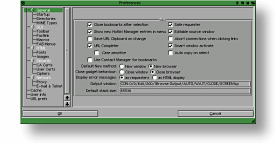
PreferencesThe default preferences for IBrowse² means it can be used straight after installing without needing to change anything (with the possible exception of the Network » Proxy settings), but there are many options that can be changed to customise the behaviour to suit your requirements. Although you do not need to change any settings or even understand them all, reading this chapter to learn about the options IBrowse² provides and experimenting with them, will be of great benefit as you become more experienced using IBrowse².

Info It is recommended that you save the default preferences before experimenting, in case you wish to return to the default settings later on. Select Menus » Preferences » Save settings as... and enter a distinctive name, such as ibrowse.defaultprefs to save them. They can then be reloaded using Menus » Preferences » Load settings....

General
The General options are those that tend to be set once, and affect the operation of IBrowse² at a more general level than the specific areas detailed throughout the rest of the preferences.
Close bookmarks after selection
Enabling this option will cause IBrowse² to close the Hotlist Manager, or the Contact Manager window, after you click on an entry.
Show new Hotlist Manager entries in menu
Enabling this option will cause any new entries you add to the Hotlist Manager to also be listed in the Bookmarks menu.
! AmigaOS® has a number of limitations regarding menus, and IBrowse² obviously suffers from those. Only 60 entries can be shown in the Bookmarks menu, as IBrowse² itself uses the remaining 3. Of those 60, any number can be a sub-menu, but each sub-menu is limited to a single level. Additionally, only 31 items are allowed in each sub-menu, so the first 31 entries with this option enabled will be shown, with the remaining entries truncated from the list.
! If you use Contact Manager to manage your bookmarks, this option has no effect.
Save URL Clipboard on change
Enabling this option will cause IBrowse² to automatically save the contents of the URL Clipboard Manager every time you add or remove an entry from the window.
URL Completer
Enabling this option will cause IBrowse² to alphabetically best guess the URL you are typing into the Location gadget, against a list of cached URLs.
Case sensitive
Enabling this option will make the URL matching for the URL Completer case sensitive.
Use Contact Manager for bookmarks
Enabling this option will cause IBrowse² to use Contact Manager in place of the internal Hotlist Manager system. Whilst Contact Manager may provide some features that the Hotlist Manager does not, you will also loose some of the features that Hotlist Manager offers, e.g. the use of aliases.
Safe requester
Enabling this option will cause IBrowse² to ask for confirmation before performing certain actions, e.g. quitting IBrowse².
Editable source window
Enabling this option will allow the source of a web page to become editable when viewing via the Menus » Webpage » Display source... menu entry. After making your changes, you are able to Reset to the original source, or Update the page to apply your changes. This only affects the local copy of the web page you are viewing, not the web page on the original website.
Abort connections when clicking links
Enabling this option will cause IBrowse² to terminate any transfers in progress when clicking on a new link - it is the equivalent of pressing Stop before clicking on a new link, only IBrowse² does it for you automatically! The advantage with disabling this option is, IBrowse² will continue to finish downloading the data on the previous web page, while the new web page loads.
Smart window activate
Enabling this option will cause IBrowse² to only auto-activate any new windows when IBrowse² itself is active, therefore avoiding stealing focus from the currently active application. This option applies to all windows that IBrowse² opens, although the Download Manager has its own option, Network » Don't activate Download Manager window.
i.e. If you are working in another window that does not belong to IBrowse², then IBrowse² will not activate any new windows it may open.
Auto copy on select
Enabling this option will cause IBrowse² to automatically copy the highlighted text to the system clipboard, after performing a "click and drag" operation over the text. This avoids the need to use the standard AmigaOS® copy shortcut (RAmiga+C), or Menus » Edit » Copy options.
Default New method
New window / New browser
This option sets the default method of opening any new windows or browsers, either via Menus » Project, via the JavaScript window.open method (often used by popup windows such as adverts), or by the HTML target="_blank" method.
Close gadget behaviour
Close window / Close browser
This option sets the default function of the close gadget on the main IBrowse² window(s). Setting the method to Close window, will cause IBrowse² to always close the window when clicking the close gadget, no matter how many open browsers there are within it. Setting the method to Close browser will cause IBrowse² to always close the active browser within the window first, followed by the window itself when there is only one browser left.
Display error messages
as requesters / as HTML display
This option sets the default method of reporting errors; as requesters will display them in an MUI requester, and as HTML display will display them in the Display Area of the browser.
Output Window
This gadget is used to set the console that will be used to display any output from any external programs launched by IBrowse². Setting the console to NIL: will suppress any output. Please refer to your Workbench or AmigaDOS manual for details of how to use the CON: device.
Default stack size
This gadget is used to set the default stack size inherited by any external programs launched by IBrowse².

General > Startup
The Startup options are those that run when IBrowse² itself is launched each session.
Info Window
URL Clipboard Manager
Cache Explorer
Cookie Manager
Password Manager
Netstat Manager
Global History Window
Hostlist Manager
Download Manager
Enabling each one of the above items, will cause that window to be opened immediately after IBrowse² is launched.

General > Directories
The Directories are various areas where IBrowse² should locate or deposit files, which are not covered in other areas of the preferences.
Download
This gadget is used to set the default download directory for files you download, and is used by IBrowse² for those files that do not specify an alternative directory in the General » MIME Types preferences. You can use the file requester gadget to the right to browse to the directory you require, or type directly into the string gadget.
Def. file pattern
This gadget is used to set the default file pattern used within the main file requesters.
Temporary
This gadget is used to set the directory you would like to use for any temporary files that IBrowse² generates. You can use the file requester gadget to the right to browse to the directory you require, or type directly into the string gadget.
Images
This gadget is used to set the directory you would like to use for storing the images you use within IBrowse², such as those used in the Navigation Toolbar, and for Image Place Holders. You can use the file requester gadget to the right to browse to the directory you require, or type directly into the string gadget.

General > MIME Types
Files that are sent from web servers to web browsers are encoded as a specific type. This encoding is known as MIME - which stands for Multipurpose Internet Mail Extensions - and we can use this to cause the web browser to behave differently depending on the encoding of each file it receives. MIME Types is the IBrowse² implementation of MIME control, and this section explains how you can use the preferences to perform, as you require.

MIME Types are split into Main Types and Sub Types by a / character, and you will often see them referred to in this format, e.g. text/html (text being the Main Type, and html being the Sub Type). You may also enter a "generic" Main Type, which will match all Sub Types for a given Main Type.

e.g. text/* would be the generic Main Type for all forms of text, such as text/html, text/plain etc. Using such an entry, will allow any Sub Types not explicitly set, to still be matched by the generic Main Type entry.
List
This area displays all of the currently configured MIME Types. The list is sorted in two orders, the primary is alphabetically, and the secondary is priority. This means that any generic MIME Types, e.g. image/* will appear after specific MIME Types, e.g. image/png therefore giving a higher priority to specific MIME Type(s) first.
Add
This gadget is used to add a new entry to the MIME Type list. Click Add, then configure the MIME Type using the options below.
Delete
This gadget is used to delete an existing entry from the MIME Type list. Highlight the entry to be removed, then click Delete to remove the entry.
MIME Type (Main Type) / (Sub Type)
These gadgets are used to specify the MIME Type for this entry. The Main Type should be entered into the first string gadget, and the Sub Type into the second string gadget.
Extension
This gadget is used to enter the various extensions used by the MIME Type entry. You can enter multiple file extensions by separating them with a space.
i.e. The image/jpeg MIME Type could have files ending in .jpeg, .jpg or .jfif. They would be listed in this gadget as "jpeg jpg jfif" (without the quotes).
Info Some servers may incorrectly set the MIME Type of certain file, so in order to over come this, it is possible to force IBrowse² to override the MIME Type specified by the server, by appending an ! in front of that particular type, i.e. "lha lzh arj arc lhx !lzx zoo" (without the quotes).
Action
This gadget is used to inform IBrowse² what to do with this MIME Type.
Internal viewer
This option will cause IBrowse² to display the file within IBrowse² itself.
! Setting this option for MIME Types that IBrowse² can't handle internally, may result in the file contents being displayed (e.g. loading an LHA archive into the Display Area), an unknown datatype error e.g. for image data it can't display internally, or the Specify action for window, where you may choose the option to perform.
External viewer
This option will cause IBrowse² to pass the file onto an external application, once the file has been downloaded from the web server.
External viewer via pipe
This option will cause IBrowse² to pass the file onto an external application, but will attempt to stream the data from the web server.
! In order for the piping to work correctly, the application you are using must be aware and capable of accepting data via a pipe. For this reason, this option will not work in all situations e.g. trying to use datatypes.
Save to disk
This option will cause IBrowse² to download the file from the web server and save it to the hard disk for later use. The location of the file will depend on the Def. save dir setting.
Ask user
This option will cause IBrowse² to open the Specify action for window, asking the user what they would like to do with the file.
Transfer URL
This option will cause IBrowse² to pass the URL to the file in plain text to an external application. This will allow the application to perform an action on that URL, with no further action on the part of IBrowse².
! When using this option in conjunction with external applications, they must be URL aware, i.e. accept a fully qualified URL as an argument, in order to operate correctly.
Viewer
This gadget is used to specify the external application that will be used by IBrowse² to view the file.
Arguments
This gadget is used to supply the arguments to the external viewer specified above. You can use the popup gadget to the right to select the arguments you require, or type directly into the string gadget. The arguments that you can pass to the application are:
%f This will be the local filename that IBrowse² generates once the file has been temporarily downloaded to pass onto the application.
%p This will be the name of the public screen IBrowse² is running on, and as such can be passed to applications that support public screens.
%r This will be the full URL of the file that IBrowse² will pass onto the application.
%n This will be the filename of the remote file, minus the path.
e.g. %r = http://www.somesite.com/somefile.lha
%n = somefile.lha
! When using %r in conjunction with external applications, they must be URL aware, i.e. accept a fully qualified URL as an argument, in order to operate correctly.
Def. save dir
This gadget is used to set the default download directory for this MIME Type. You can use the file requester gadget to the right to browse to the directory you require, or type directly into the string gadget.
! Using this gadget may override the directory set in General » Directories » Download.
The cycle gadget to the right of the file requester gadget, gives you even more control over how this MIME Type is saved.
Use default
This option will override anything you enter into the General » MIME Types » Def. save dir gadget, and will force IBrowse² to use the directory set in General » Directories » Download.
Use generic type
This option will override anything you enter into the General » MIME Types » Def. save dir gadget, and will force IBrowse² to use the directory that has been set for the generic Main Type, e.g. images/*
! If you set this option and do not have a generic Main Type set, then the file will be saved in the directory where IBrowse² is installed (PROGDIR:).
Use
This option will cause IBrowse² to use the directory entered in the General » MIME Types » Def. save dir gadget, when it opens the file requester asking for the name to save the file as. This will override Network » Download files automatically if it is enabled.
Use (no req)
This option will cause IBrowse² to use the directory entered in the General » MIME Types » Def. save dir gadget to save the file into, but you will not be issued a file requester asking for a file name. Instead, IBrowse² will use the name supplied by the web server you are saving the file from. This will override Network » Download files automatically if it is disabled.
Info IBrowse² 2.3 supports the Content-Disposition header, which is used by some servers to define the name that the file should be saved as when it is downloaded.
! If the filename of the file you are downloading is longer than 30 characters, the file requester will still be displayed. This is a safety feature built in to IBrowse² to ensure the filename is suitable for the filesystem in use on your hard disk. The standard AmigaOS® FastFileSystem (FFS) is limited to 30 characters for filenames, and whilst other filesystems overcoming this limitation exist, there is no foolproof way to check which filesystem is in use. A suggestion to solve this has been put forward for a future release of IBrowse.

GUI
The GUI options allow you to tailor the look of the IBrowse² GUI, by showing or hiding various elements.
Show navigation toolbar
Enabling this option will display the Navigation Toolbar GUI element in IBrowse², which can then be customised using the GUI » Toolbar options.
Show location toolbar
Enabling this option will display the URL Toolbar GUI element in IBrowse².
Show fastlink buttons
Enabling this option will display the Fastlinks GUI element in IBrowse², which can then be customised using the GUI » Fastlinks options.
Show transfer animation
Enabling this option will display the Transfer Animation GUI element in IBrowse².
Show status bar
Enabling this option will display the Status Toolbar GUI element in IBrowse².
Show tab for single browser
Enabling this option will display the Browser Tabs GUI element in IBrowse², even when there is only one browser being displayed.
Info This option is strongly recommended to gain the full functionality of the Drag & Drop support.
Show space for new tab
Enabling this option will leave a blank space in the Browser Tabs GUI element, which is used to Drag & Drop into. Any new browser tabs will then open in this area. With the option disabled, the Browser Tabs GUI element will dynamically adjust when Drag & Drop'ing into the top right-most area.

GUI > Toolbar
The Navigation Toolbar is a rather powerful feature of IBrowse², allowing you to add far more than just simple navigation controls to the GUI. The top of these preferences shows a list of the available buttons that can be applied to your custom toolbar. They are as follows:
Back
This navigation button will return you to the previously displayed web page for the current browser, for the current session. By repeatedly clicking this button, you can keep stepping back through your history to the very first page for the current browser, unless the history has been cleared using the Menus » Navigation » Flush browser history entry, at which point the button will be disabled. Using the right mouse button over this button, will open a FAB Menu listing all of the previously visited links, which will allow you to jump directly to a link of your choosing.
Forward
This navigation button behaves slightly differently to the Back button, in that it will only list a history of visited web pages for the current session, that are visited after the current web page. Clicking on the button will take you to the last web page that you visited while viewing the current web page. Using the right mouse button over this button, will open a FAB Menu listing all of the previously visited web pages, which will allow you to jump directly to a web page of your choosing.
Home
This navigation button will instruct IBrowse² to load the web page you have configured under Network » Location. Using the right mouse button over this button, will open a FAB Menu listing two hard coded options, which will take you to the IBrowse² and Amiga Inc. homepages.
Reload
This navigation button will instruct IBrowse² to reload the web page displayed in the current browser, from the originating location (web server, CDROM, hard disk etc), therefore avoiding the version in your local cache. Using the right mouse button over this button, will open a FAB Menu listing two hard coded options, All and Images. All is used to reload all of the data for web page displayed in the current browser, where as Images will only reload the image data.
Info Reloading Images will not magically load any images that have errors. It is used to reload images after browsing with HTML » Images » Load images set to None or Imagemaps, as well as those that have been interrupted by using the Stop button, due to a network error or flushed from display using one of the image flushing options found under Menus » Cache » Memory cache.
Load Images
This navigation button will instruct IBrowse² to load any images on the web page being displayed in the current browser, that have not been loaded, or that have been flushed from display using one of the image flushing options found under Menus » Cache » Memory cache.
Info This will not magically load any images that have errors. It is used to load images after browsing with HTML » Images » Load images set to None or Imagemaps, as well as those that have been interrupted by using the Stop button, due to a network error or flushed from display using one of the image flushing options found under Menus » Cache » Memory cache.
Search
This navigation button will open the Search Current Webpage window, allowing you to perform a word search on the web page displayed in the current browser. If the web page is frames based, the search will be performed on the current frame.
Stop
This navigation button will instruct IBrowse² to stop the current transfers the current browser is performing, except for those being performed by the Download Manager.
Info This will only stop transfers that are shown in the Netstat Manager, it will not affect any file downloads taking place in the Download Manager.
Spacer
This button will add a fixed space between the two toolbar buttons in which it is positioned.
Distance
This button will space the buttons out over the full length of the available Navigation Toolbar GUI element, by adding a (variable) distance between the two toolbar buttons in which it is positioned. Multiple distances will equally split the available space to "balance" the buttons over the toolbar length.
Animation
This button will embed the Transfer Animation GUI element, into the actual Navigation Toolbar at the location it is positioned.
! This will actually move the Transfer Animation GUI element into the Navigation Toolbar, not make a copy.
Fastlinks
This button will embed the Fastlinks GUI element into the Navigation Toolbar at the location it is positioned. The Fastlinks will be truncated to only show what it can in the available space of the Navigation Toolbar GUI element.
! This will actually move the Fastlinks GUI element into the Navigation Toolbar, not make a copy.
Custom
This button will allow you to create a custom button in the location it is positioned.

Customising the Navigation Toolbar to suit your requirements is achieved using the Drag & Drop procedure. Position the mouse over the button you would like to add to the toolbar, hold the left mouse button down, and drag the button into the desired position in the Resulting Toolbar preview area, where they can then be configured using the options available in the middle of the preferences window. Drag & Drop can also be used to add a URL to a button, when the GUI » Toolbar » Action gadget is set to URL.
Label
This gadget is used to set the text displayed in the button, when GUI » Toolbar » Display is set to Text or Images & Text. It is also possible to assign a hotkey shortcut to the button here, by adding an underscore in front of the letter you would like to act as the shortcut hotkey.
e.g. If you were to set up a new button to quickly load the IBrowse² documentation, you could enter the following to make it load when pressing the D key by entering the label as follows: IB _Docs.
! Care must be taken to avoid duplicating any shortcut hotkeys, although nothing serious will happen if they are. A list of all the standard IBrowseČ shortcut hotkeys can be found in the Hotkeys chapter.
Image
This gadget is used to set the image file used to display in the button, when GUI » Toolbar » Display is set to Images or Images & Text. You can use the file requester gadget to the right to browse to the file you require, or type directly into the string gadget. Images can be in any format that you have a suitable datatype for, installed on your system.
Images
This gadget is used to specify how many images are contained within the image file specified. If the image file is of just a single button image, then it should be set to 1. However, if you had an image file with multiple button images in one long strip, then you would enter the total number of images contained within that file, 6 for the example shown below.
Example Toolbar Images

Example showing multiple images contained in one main image file.
Multiple button images should be in the following format:

number of button images * image button width = total image width

e.g. if your file contained 10 images and the width of each image was 32 pixels, the total image width should equal 320 pixels.
! If this is not the case, the images will be incorrectly cropped and misplaced when applied to the buttons.
Image #
This gadget is used to specify which image should be used when a file contains multiple button images as defined in GUI » Toolbar » Images. If there is only one button image, then it should be set to 0.
Action
This gadget is used to specify the action this button will perform. There are three options available:
URL
This option will simply load the URL specified when the button is pressed, in the same way that a Fastlinks button operates.
ARexx
This option will cause IBrowse² to execute the ARexx script specified, when the button is pressed. You can use the file requester gadget to the right to browse to the file you require, or type directly into the string gadget.
INT
This gadget will open a dropdown menu with all of the available internal ARexx commands. You can use these commands as an alternative to a full ARexx script to perform more simple actions. Please refer to the ARexx chapter for further information on the IBrowse² ARexx interface.
Popup Gadget
This gadget will open another dropdown menu with a list of the available arguments for use with the IBrowse² ARexx commands:
%a This will be the active frame ID - the active frame is the frame that currently has a border around it.
%b This will be the current Browser ID as shown in the window title between the [ ] brackets.
%f This will be the ID of the current frameset.
%i This will be the URL of the current image.
%l This will be the URL of the current link.
%p This will be the name of the public screen IBrowse² is running on, and as such can be passed to applications that support public screens.
%t This will be the ID of the frame that this link will open in, if the target="ID" attribute is specified.
%u This will be the URL of the currently displayed web page.
Command
This option allows you to specify an Amiga compatible command, or application for IBrowse² to launch, when the button is pressed.
Popup Gadget
This gadget will open another dropdown menu with a list of the available arguments for use with the application or command:
%a This will be the active frame ID - the active frame is the frame that currently has a border around it.
%b This will be the current Browser ID as shown in the window title between the [ ] brackets.
%f This will be the ID of the current frameset.
%i This will be the URL of the current image.
%l This will be the URL of the current link.
%p This will be the name of the public screen IBrowse² is running on, and as such can be passed to applications that support public screens.
%t This will be the ID of the frame that this link will open in if the target="ID" attribute is specified.
%u This will be the URL of the currently displayed web page.
Display
This option is used to set the display method used for the toolbar buttons. It has three modes as follows:
Text
This option will display the button as text only, using the text specified under GUI » Toolbar » Label for each entry.
Images
This option will display the button as an image only, using the image specified under GUI » Toolbar » Image for each entry.
Images & Text
This option will display the button as a combination of both text and image specified under GUI » Toolbar » Image and GUI » Toolbar » Label respectively, for each entry.
Center
This option is used to center the toolbar buttons within the Navigation Toolbar GUI element.

The buttons shown in Resulting Toolbar are fully Drag & Drop compatible, allowing you to quickly rearrange them to suit your needs. In addition, each toolbar entry also has a FAB Menu available with the following options:
Delete button/spacer/distance
This option will delete the item from the Navigation Toolbar.
Display priority
This option is used to determine which buttons should be shown in cases where there is not enough space to display all of the buttons in the Navigation Toolbar GUI element.
High
Buttons with a high priority will be the last to be dropped, when there is not enough space in the Navigation Toolbar GUI element to display them all.
Medium
Buttons with a medium priority will be dropped before those with a high priority, but after those with a low priority, when there is not enough space in the Navigation Toolbar GUI element to display them all.
Low
Buttons with a low priority will be the first to be dropped, when there is not enough space in the Navigation Toolbar GUI element to display them all.
e.g. If your toolbar takes up 800 pixels and you resize your IBrowse² window, so that the resulting width is 600 pixels, IBrowse² would automatically drop various buttons from the toolbar to ensure the ones you want are always visible, based on their display priority.

GUI > Fastlinks
The Fastlinks are an area of the IBrowse² GUI where you can store banks of buttons. These buttons are very flexible in their operation, as you can use them to not only retrieve a pre-assigned URL by single clicking, but also run an ARexx script, or even launch an external application. The Fastlinks preferences are Drag & Drop compatible allowing you to add URLs by dropping directly onto the GUI » Fastlinks » List or the GUI » Fastlinks » Action gadget, when it is set to URL.
! When dragging a URL item into the Fastlinks preferences, you may drag the pointer over the GUI » Fastlinks » List while enroute to the GUI » Fastlinks » Action gadget. If you pass over the GUI » Fastlinks » List and move the pointer over the bottom of it, you will find that the dropzone remains highlighted even when the pointer is over the GUI » Fastlinks » Action gadget (which is a valid dropzone when set to URL). This is due to the way the scrolling is implemented in the MUI class(es) used for the lists, and as such can not be addressed via IBrowse. In order to allow the correct dropzone to be highlighted, ensure the pointer exits at the side of the GUI » Fastlinks » List when passing over it.
List
This area is used to display the complete list of Fastlinks that IBrowse² will display in the Fastlinks GUI element.
Add
This gadget is used to add a new entry to the Fastlinks list. Click Add, then configure the Fastlink using the options below.
Delete
This gadget is used to delete an existing entry from the Fastlinks list. Highlight the Fastlink to be removed, then click Delete to remove the entry.
Center
This option is used to center the Fastlink buttons within the Fastlinks GUI element.
Rows
This option is used to specify how many rows of Fastlink buttons should be shown. Use the slider to increase the number of rows, and IBrowse² will equally distribute the entries working down the list, one column at a time for the number of rows specified. If the number of Fastlinks is greater than can be displayed in the number of rows you specify, the Fastlinks that do not fit will be truncated from the GUI element.
Name
This gadget is used to set the text that will be displayed in the Fastlink button itself. The buttons will all be sized to match the longest entry, so to ensure as many entries as possible are shown per row, try to use concise and clear names.
Action
This gadget is used to specify the action this button will perform. There are three options available:
URL
This option will simply load the URL specified when the button is pressed.
ARexx
This option will cause IBrowse² to execute the ARexx script specified, when the button is pressed. You can use the file requester gadget to the right to browse to the file you require, or type directly into the string gadget.
INT
This gadget will open a dropdown menu with all of the available internal ARexx commands. You can use these commands as an alternative to a full ARexx script to perform more simple actions. Please refer to the ARexx chapter for further information on the IBrowse² ARexx interface.
Popup Gadget
This gadget will open another dropdown menu with a list of the available arguments for use with the IBrowse² ARexx commands:
%a This will be the active frame ID - the active frame is the frame that currently has a border around it.
%b This will be the current Browser ID as shown in the window title between the [ ] brackets.
%f This will be the ID of the current frameset.
%i This will be the URL of the current image.
%l This will be the URL of the current link.
%p This will be the name of the public screen IBrowse² is running on, and as such can be passed to applications that support public screens.
%t This will be the ID of the frame that this link will open in if the target="ID" attribute is specified.
%u This will be the URL of the currently displayed web page.
Command
This option allows you to specify an Amiga compatible command, or application for IBrowse² to launch, when the button is pressed.
Popup Gadget
This gadget will open another dropdown menu with a list of the available arguments for use with the application or command:
%a This will be the active frame ID - the active frame is the frame that currently has a border around it.
%b This will be the current Browser ID as shown in the window title between the [ ] brackets.
%f This will be the ID of the current frameset.
%i This will be the URL of the current image.
%l This will be the URL of the current link.
%p This will be the name of the public screen IBrowse² is running on, and as such can be passed to applications that support public screens.
%t This will be the ID of the frame that this link will open in if the target="ID" attribute is specified.
%u This will be the URL of the currently displayed web page.

GUI > Macros
Like the Fastlinks, the Macro system in IBrowse² is very flexible, also allowing you to not only retrieve a pre-assigned URL, but also run an ARexx script, or launch an external application. The Macro preferences are Drag & Drop compatible allowing you to add URLs by dropping directly onto the GUI » Macros » List or the GUI » Macros » Action gadget, when it is set to URL.
! When dragging a URL item into the Macros preferences, you may drag the pointer over the GUI » Macros » List while enroute to the GUI » Macros » Action gadget. If you pass over the GUI » Macros » List and move the pointer over the bottom of it, you will find that the dropzone remains highlighted even when the pointer is over the GUI » Macros » Action gadget (which is a valid dropzone when set to URL). This is due to the way the scrolling is implemented in the MUI class(es) used for the lists, and as such can not be addressed via IBrowse. In order to allow the correct dropzone to be highlighted, ensure the pointer exits at the side of the GUI » Macros » List when passing over it.
List
This area is used to display the complete list of Macros that IBrowse² will display in Menus » Macros.
Add
This gadget is used to add a new entry to the macros list. Click Add, then configure the Macro using the options below.
Delete
This gadget is used to delete an existing entry from the Macros list. Highlight the Macro to be removed, then click Delete to remove the entry.
Name
This gadget is used to specify the name that will be displayed under Menus » Macros.
! This menu will not appear until there is something listed in the Macros list.
Action
This gadget is used to specify the action this button will perform. There are three options available:
URL
This option will simply load the URL specified when the menu entry is selected, in the same way that a Fastlinks button operates
ARexx
This option will cause IBrowse² to execute the ARexx script specified, when the menu entry is selected. You can use the file requester gadget to the right to browse to the file you require, or type directly into the string gadget.
INT
This gadget will open a dropdown menu with all of the available internal ARexx commands. You can use these commands as an alternative to a full ARexx script to perform more simple actions. Please refer to the ARexx chapter for further information on the IBrowse² ARexx interface.
Popup Gadget
This gadget will open another dropdown menu with a list of the available arguments for use with the IBrowse² ARexx commands:
%a This will be the active frame ID - the active frame is the frame that currently has a border around it.
%b This will be the current Browser ID as shown in the window title between the [ ] brackets.
%f This will be the ID of the current frameset.
%i This will be the URL of the current image.
%l This will be the URL of the current link.
%p This will be the name of the public screen IBrowse² is running on, and as such can be passed to applications that support public screens.
%t This will be the ID of the frame that this link will open in if the target="ID" attribute is specified.
%u This will be the URL of the currently displayed web page.
Command
This option allows you to specify an Amiga compatible command, or application for IBrowse² to launch, when the menu entry is selected.
Popup Gadget
This gadget will open another dropdown menu with a list of the available arguments for use with the application or command:
%a This will be the active frame ID - the active frame is the frame that currently has a border around it.
%b This will be the current Browser ID as shown in the window title between the [ ] brackets.
%f This will be the ID of the current frameset.
%i This will be the URL of the current image.
%l This will be the URL of the current link.
%p This will be the name of the public screen IBrowse² is running on, and as such can be passed to applications that support public screens.
%t This will be the ID of the frame that this link will open in if the target="ID" attribute is specified.
%u This will be the URL of the currently displayed web page.

GUI > FAB Menus
The FAB Menus that can be configured here, are those displayed in the Display Area of the browser. All of the internal FAB Menu commands are covered in detail in the FAB Menus chapter, except for those specific to this section, which are explained below.

The left hand side of the FAB Menus preferences consists of the GUI » FAB Menus » List which contains all of the available commands for use in the custom FAB Menus, whilst the right hand side shows the GUI » FAB Menus » Tree containing the FAB Menus themselves. The preference control is fully Drag & Drop compatible, allowing you to easily add, remove or rearrange the FAB Menu entries to suit your requirements.

List
This area is used to display the complete list of internal commands that IBrowse² can display in the FAB Menus. The actual commands are explained in the FAB Menus chapter, but there are three items not covered which are specific to the FAB Menus preferences: Submenu, Custom and the Divider.
Submenu
This option will add a new submenu to the FAB Menus tree, in the position in which it is dropped. The title of the submenu can then be edited using GUI » FAB Menus » Name.
! AmigaOS® has a number of limitations regarding menus, and IBrowse² obviously suffers from those. Submenus can only be nested one deep, so although IBrowse will allow you to add submenus to submenus, the contents of those nested will be listed under the first submenu and not displayed as shown in GUI » FAB Menus » Tree. A suggestion to solve this has been put forward for a future release of IBrowse.
Custom
This option will add a custom entry to the FAB Menus tree, in the position in which it is dropped. A custom entry is one that you configure to perform an action not covered by those in the internal commands list. Once the custom entry has been added to the position required, it can be configured using GUI » FAB Menus » Action.
Divider
This option will add a graphical divider to the FAB Menus tree, in the position in which it is dropped.
Tree
This area is used to display the actual FAB Menus in a tree format allowing you to easily see the construction of the entries and submenus. Double clicking on one of the FAB Menu titles will open the menu and display the list of entries it contains. Those displayed in a bold typeface are the default internal commands, and whilst they can be removed or rearranged, they cannot be edited. To remove an entry from the menu, highlight it in the FAB Menu tree and then use its own FAB Menu by pressing the right mouse button, and select Delete. To add an internal command, highlight it in the available commands list on the left, then drag it into the position you would like it in, on the FAB Menu tree on the right. If you accidentally drop it in the wrong position, just highlight the newly added entry, drag it to the correct position, and drop it. By using this method, you can rearrange the order of the FAB Menus to suit your requirements. To add a custom command or a new submenu to the FAB Menus, locate the menu you would like to add to, then Drag & Drop the Custom or Submenu entry from the left hand list. Custom entries will be shown in normal, non-bold typeface, and can then be edited using the options available at the bottom of the FAB Menu tree, on the right hand side.
Name
This gadget is used to set the name that will be displayed in the FAB Menu itself.
Action
This gadget is used to specify the action this menu entry will perform. There are three options available:
URL
This option will simply load the URL specified when the menu entry is selected.
ARexx
This option will cause IBrowse² to execute the ARexx script specified, when the menu entry is selected. You can use the file requester gadget to the right to browse to the file you require, or type directly into the string gadget.
INT
This gadget will open a dropdown menu with all of the available internal ARexx commands. You can use these commands as an alternative to a full ARexx script to perform more simple actions. Please refer to the ARexx chapter for further information on the IBrowse² ARexx interface.
Popup Gadget
This gadget will open another dropdown menu with a list of the available arguments for use with the IBrowse² ARexx commands:
%a This will be the active frame ID - the active frame is the frame that currently has a border around it.
%b This will be the current Browser ID as shown in the window title between the [ ] brackets.
%f This will be the ID of the current frameset.
%i This will be the URL of the current image.
%l This will be the URL of the current link.
%p This will be the name of the public screen IBrowse² is running on, and as such can be passed to applications that support public screens.
%t This will be the ID of the frame that this link will open in if the target="ID" attribute is specified.
%u This will be the URL of the currently displayed web page.
Command
This option allows you to specify an Amiga compatible command, or application for IBrowse² to launch, when the menu entry is selected.
Popup Gadget
This gadget will open another dropdown menu with a list of the available arguments for use with the application or command:
%a This will be the active frame ID - the active frame is the frame that currently has a border around it.
%b This will be the current Browser ID as shown in the window title between the [ ] brackets.
%f This will be the ID of the current frameset.
%i This will be the URL of the current image.
%l This will be the URL of the current link.
%p This will be the name of the public screen IBrowse² is running on, and as such can be passed to applications that support public screens.
%t This will be the ID of the frame that this link will open in if the target="ID" attribute is specified.
%u This will be the URL of the currently displayed web page.

HTML
HTML is a markup language, which means the web page author supplies the content, and the browser displays it. The result is, the display of the web page can be configured to the requirements of the person viewing the web page, rather than being forced to view it in a specific manner. The HTML options in this section are used to customize the look of the HTML that is displayed in the Display Area, as well as allowing you to configure how IBrowse² will behave with certain specific areas of the HTML specification(s).
Underline links
Enabling this option will cause IBrowse² to display any links with an underlined typeface to emphasize they are clickable.
Ignore custom colors
Enabling this option will cause IBrowse² to override the colors specified by the web page author, and use the colors you specify below in the HTML » Colors section.
Meta refresh support
Enabling this option will cause IBrowse² to acknowledge the <meta http-equiv="refresh"> HTML tag found on some web pages. This tag causes the web page to automatically reload after x seconds, as specified by the web page author, and is often used to update statistics, web cam images, or to redirect to a different web page etc.
Force display of frame scrollbars when required
Enabling this option will cause IBrowse² to force the display of scrollbars in a frames environment when they are required, even if the web page author has specified otherwise.
Frames support
Enabling this option will tell IBrowse² to use frames when visiting a website with a frames environment. Some sites cater for browsers that do and do not handle frames, and will show an alternative page. However, please bear in mind, often sites simply tell you to upgrade your browser if it reports it does not support frames, so leaving this option enabled is usually the best option.
Remap Windows® specific characters
Enabling this option will cause IBrowse² to remap Microsoft® Windows® specific characters to equivalent approximations in the Amiga character set. This is necessary because Amiga fonts do not usually support these characters, and so will not display them when authors use them on their web pages. Disabling this option will cause IBrowse² to use the characters from the font if they are available, so is recommended if you have set up IBrowse² to use Truetype® fonts in the HTML » Fonts section.
Links expire after
This option allows you to specify the number of days that should pass before followed links expire. After this time, followed links will change to unfollowed status, and the link will be purged from the Global History Window.
Expire now
This option will purge all links from the Global History Window, and reset all links to unfollowed status.
Colors
This section of the HTML preferences is used to customise the colors you would like to use when IBrowse² displays the web page. They are only used when the web page author does not specify their own particular color definitions or if HTML » Ignore custom colors is enabled.
Text
This gadget is used to set the color used by IBrowse² to render all the text on a web page, except for links.
Background
This gadget is used to set the color used by IBrowse² to render the background of a web page when an image is not specified.
Info It is recommended to set this colour to white in order to mimic that of the major browsers on other platforms. Web page authors often leave the background colour definition unset on their pages, assuming the browser will render it white (as the majority of web pages are "designed" in/for Microsoft® Internet Explorer), and as such look strange when viewed with browsers that have their background colour set to something else.
Shine
This gadget is used to set the color used by IBrowse² to render the lighter part of 3D effects used on certain elements on web pages, e.g. form gadgets, the horizontal rule - <hr>. etc.
Shadow
This gadget is used to set the color used by IBrowse² to render the darker part of 3D effects used on certain elements on web pages, e.g. form gadgets, the horizontal rule - <hr>. etc.
Unfollowed link
This gadget is used to set the color used by IBrowse² to render any links that have not been visited previously.
Followed link
This gadget is used to set the color used by IBrowse² to render any links that have been visited previously.
Active link
This gadget has no function in this release of IBrowse².
Selected Link
This gadget is used to set the color used by IBrowse² to render the link that is currently under the mouse pointer, while the left mouse button is held down.
Wait for
These options cause IBrowse² to wait for the results before displaying the complete web page.
Background
Enabling this option will cause IBrowse² to wait for the background image to be downloaded, before displaying the complete web page.
Bug There is a known issue with the HTML » Wait for » Background setting: if the gadget is enabled, and a background image can not be loaded due to an error, the page will appear to never be displayed.
Image size
Enabling this option will cause IBrowse² to wait for all the image size information to be downloaded, before displaying the complete web page.
Image
Enabling this option will cause IBrowse² to wait for all the image data to be downloaded, before displaying the complete web page.

HTML > Fonts
One of the features of the HTML4 specification is support for alternate typefaces as specified by the web page author. In order to support this feature, this section allows you to configure them, as you require. By mapping font styles to different fonts, you can configure IBrowse² to only use the fonts you require. The font styles are defined in IBrowse² and mapped against the <font face=""> tags embedded in the HTML, allowing you to override the font chosen by the web page author e.g. the web page author may specify <font face="helvetica"> which you have mapped in IBrowse² to Times Roman. Using this same procedure, you can also map additional fonts to be used when printing the web page.
List / Tree
This area is used to display the current font mappings used by IBrowse², and by default two entries are listed: Normal font and Fixed width font. Double clicking on the font title under the Style column, will open the font definition tree for that particular font, resulting in a list of seven font sizes; Size 1 (the smallest), through Size 7 (the largest). The specific fonts and sizes that are mapped to each entry are shown in the Font for display and Font for Graphical printing columns. These can be changed using the three tabs at the bottom of the Font preferences.
Add font style
This gadget is used to add a new font style to the main list. Click New font style, and configure the typeface using the options below.
Copy font style
This gadget is used to copy an existing style from the main list. Highlight the existing style from the list, and then click Copy font style to create a duplicate copy. The copied font can then be configured using the options below.
Delete font style
This gadget is used to delete an existing style from the main list. Highlight the existing style from the main list, and then click Delete font style to remove it.
Range
This gadget is used to automatically assign the font data to the remaining sizes, after you have manually assigned a font to Size 1. It will automatically generate the range of Amiga font sizes for the virtual sizes used in the HTML.
e.g. If you set Size 1 to Times/9 then clicked Range, IBrowse² will complete the rest of the font mappings using sizes based on its internal calculations, meaning the resulting sizes may not match existing font sizes.
Range (match)
This gadget is used to automatically assign the font data to the remaining sizes, after you have manually assigned a font to Size 1. It will automatically generate the range of Amiga font sizes for the virtual sizes used in the HTML, by comparing the required size to the closest matching size of the fonts installed. This can make bitmapped fonts look better, but there is not much point using it with scaled fonts, they will always be generated on-the-fly to the correct scale.
e.g. If you have seven font sizes for the Times bitmap font in your Fonts: directory, sizes 9, 11, 15, 18, 20, 23 & 28, and you set Size 1 to Times/9 then clicked Range (match), IBrowse² will complete the rest of the font mappings using Times/11, Times/15, Times/18, Times/20 and Times/23 thereby matching the mappings to valid existing font sizes.
Name
This gadget is used to set the name of the font style currently selected. The name entered here, is matched against the HTML <font face=""> tag. It is possible to group names together separating them with a , in order to map multiple font names to a single font. The font names specified in the HTML will for the majority of cases, be those from Microsoft® Windows® based systems, and Microsoft® even created a font package called TrueType core fonts for the Web which was available for download from its website. The package consisted of numerous fonts for use with web pages, and as such are the more common names found in use. The fonts were as follows:
  • Andale Mono
  • Arial
  • Arial Black
  • Comic Sans MS
  • Courier New
  • Georgia
  • Helvetica*
  • Tahoma*
  • Times (New Roman)
  • Trebuchet MS
  • Trebuchet MS Italic
  • Verdana
  • Webdings
* These fonts were not part of the original Microsoft® TrueType core fonts for the Web package, but are still commonly used.

Using these names in your font definitions will allow you to map either Amiga specific fonts, or the real TrueType fonts if installed via Richard Griffins TTF.library & TTF Manager, to them. The names should match identically to correctly be identified and mapped.

For display
This tab is used to set up the font that will be rendered within the IBrowse² Display Area.
Font
This gadget is used to set the font name and size that you would like to be displayed for this font style. You can use the font requester gadget to the right to browse to the font you require, or type directly into the string gadget in the format: fontname/size.
Font preview area
The remaining area of the For display tab, is used to preview the chosen font style and size.
For PostScript printing
This tab is used to setup the font that will be used when printing the web page to a PostScript printer.
PostScript font for this style
This gadget is used to specify which of the default printer PostScript fonts should be used to represent this font when printing via PostScript.
AFM (metrics) files
This gadget is used to specify the location of the PostScript AFM (metrics) files. You can use the file requester gadget to the right to browse to the directory you require, or type directly into the string gadget.
Info The AFM files are not a requirement in order to print, but text will print better if the correct metrics information is used. Please refer to the Printing chapter for further information on obtaining the AFM files.
For Graphical printing
This tab has no function in this release of IBrowse².

HTML > Images
The Image options in this section are used to configure how IBrowse² will handle and react to various images as they are encountered within web pages.
Use Fastmem for images
Enabling this option will cause IBrowse² to store image data in fast memory (Fastmem), rather than using the standard - and slower - chip memory (Chipmem).
! This should not be enabled if you open IBrowse² on a graphics card screen, as the image data will be stored in the graphics card memory. Please refer to the Advanced Topics chapter for information on configuring IBrowse² to use its own screen.
Play GIF animations
This gadget is used to set the behaviour IBrowse² will follow when it displays GIF animations on a web page.
Always
This option will cause IBrowse² to always play GIF animations, even when the browser is not currently active.
When IBrowse is active
This option will cause IBrowse² to play GIF animations when any IBrowse² window is active, e.g. the Download Manager, URL Clipboard Manager, main IBrowse² window etc.
When window is active
This option will cause IBrowse² to play GIF animations only when the main IBrowse² window is active.
Never
This option will cause IBrowse² to ignore GIF animations and only display the first frame as a static image.
Load images
This gadget is used to set the behaviour IBrowse² will follow when it encounters any images on a web page.
All
This option will cause IBrowse² to try and load all images, as long as the format is supported, on the web page. Image formats that are supported by the internal decoders are listed under HTML » Images » Internal/External. Those formats not covered by the internal decoders, will be automatically passed onto the Amiga datatypes system so as long as you have a suitable datatype installed, IBrowse² will still be able to display it.
Imagemaps
This option will cause IBrowse² to only load image maps, which are often required for navigation around a website, while ignoring any other images on the web page. If a web page uses imagemaps and does not offer any alternate text based means to navigate, you may find yourself stuck if you have HTML » Images » Load images set to None. Therefore it is recommended that you use this option as an alternative.
None
This option will cause IBrowse² to ignore all images on the web page.
Swap for JPEG decoder
This gadget is used to set the directory that will be used by the internal JPEG Decoder, to store any temporary data. You can use the file requester gadget to the right to browse to the directory you require, or type directly into the string gadget.
Info Unless you have a lot of RAM you should select a location on your hard disk and not a location in memory, e.g. RAM: or T:, as you may run out of free memory when the temporary files are created.
Memory limit for JPEG decoder
This gadget is used to set the maximum amount of memory that the internal JPEG decoder will use for each JPEG image while decoding.
Palette
This gadget is used to set the method IBrowse² will use to decide the palette available for the images on a web page, from the pens available on the screen.
Info This option is ignored if you are displaying IBrowse² on a graphics card screen. Please refer to the Advanced Topics chapter for information on configuring IBrowse² to use its own screen.
Best
This option will cause IBrowse² to pick the best palette from the available pens, therefore providing a better looking image, but will be slower than using HTML » Images » Palette » Fast.
Fast
This option will cause IBrowse² to pick the palette from the available pens much faster than HTML » Images » Palette » Best, but will not look as good.
Grayscale
This option will cause IBrowse² to pick the palette in a fast method, but will restrict the images to grayscale.
Dithering
This gadget is used to set the method IBrowse² will use to dither the images on the web page, when there are not enough available pens to display the images in their correct colours. Dithering is a process that IBrowse² will apply to an image to create the illusion of more colours. When running IBrowse² on a screen with 256 colours or less, there is a strong chance the particular colour required in an image will not exist. Dithering will allow IBrowse² to select colours similar to the requested colour, therefore giving the illusion of more colours. The dithered images will appear grainier than non-dithered images due to the process involved and the fact it is working with a limited number of colours per pixel.
An Image Without Dithering In IBrowse²
Example of an image without dithering
Image © Dave Fisher 2002
An Image On A 64 Colour Screen With Dithering In IBrowse²
Example of an image dithered on a 64colour screen
Image © Dave Fisher 2002
Info This option is ignored if you are displaying IBrowse² on a graphics card screen. Please refer to the Advanced Topics chapter for information on configuring IBrowse² to use its own screen.
Off
This option will cause IBrowse² to not dither the images at all, which will result in a faster display of images on the web page, but the appearance will not be improved.
Floyd-Steinberg
This option will cause IBrowse² to apply the Floyd-Steinberg dithering process to the images on the web page. This will result in a slower display, but the appearance will be improved, in some cases, considerably.
Don't dither backgrounds
Enabling this option will cause IBrowse² to ignore background images when applying the HTML » Images » Dithering setting. This can improve the readability of text on web pages with a background image when running IBrowse² on a screen with 256 colours or less.
Progressive JPEGs
Enabling this option will cause IBrowse² to display JPEG images progressively, when they are encoded as such. Progressive JPEGs will be displayed slightly slower than non-progressive JPEGs, but you will get a visual feedback as they are being decoded.
Internal / External
These options specify whether IBrowse² should decode the image formats internally via its own decoders, or pass the data onto the system datatypes to do the decoding externally.
! Using external decoders means there will be no progressive decoding.
JPEG
This option will affect all JPEG (Joint Picture Experts Group) image formats.
PNG
This option will affect all PNG (Portable Network Graphic) image formats.
XBM
This option will affect all XBM (X Bitmap) image formats.
GIF
This option will affect all GIF (Graphics Interchange Format) image formats.

Security
The Security settings in this section cover two aspects of IBrowse²: SSL security features, and JavaScript. Although JavaScript does not relate directly to security, it is often cited as a security risk so has been included under this section.
JavaScript support
Enabling this option will cause IBrowse² to execute any JavaScript found on a web page.
! JavaScript can be considered a security and privacy risk. If this concerns you, disable this option, but please be aware that some websites may not operate as intended, or in extreme cases, at all.
JavaScript error requesters
Enabling this option will cause IBrowse² to display an error requester when it finds an error in the JavaScript on the web page. The error could be either a programming error in the JavaScr